tl;dr
PowerShell から Windows Firewall を操作するメモ。
参考
memo
試している環境
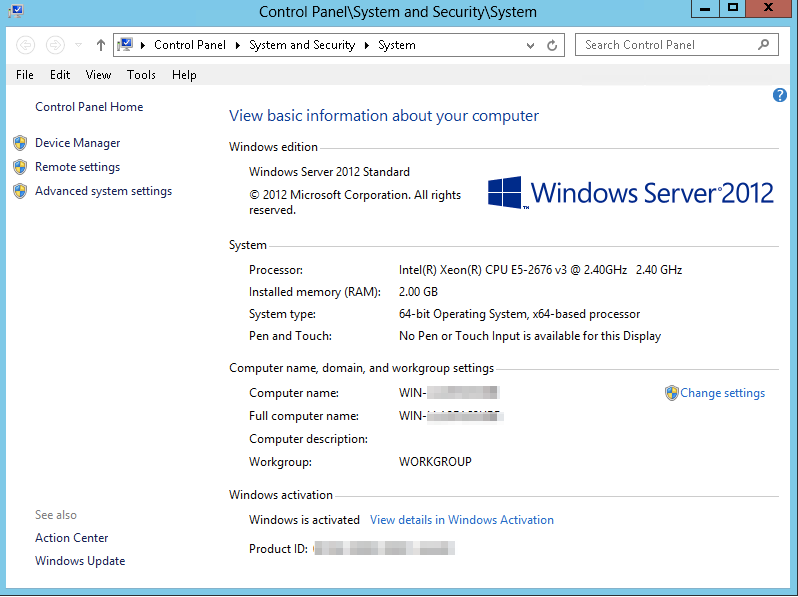
PowerShell のバージョン。
PS C:\Users\Administrator> $PSVersionTable

Name                           Value
----                           -----
PSVersion                      3.0
WSManStackVersion              3.0
SerializationVersion           1.1.0.1
CLRVersion                     4.0.30319.34209
BuildVersion                   6.2.9200.17065
PSCompatibleVersions           {1.0, 2.0, 3.0}
PSRemotingProtocolVersion      2.2
既存の Firewall ルールを確認する
コマンドレットの Get-NetFirewallRule を利用する。
PS C:\Users\Administrator> Get-NetFirewallRule
実行すると以下のようにダラダラーとルールが出力される。
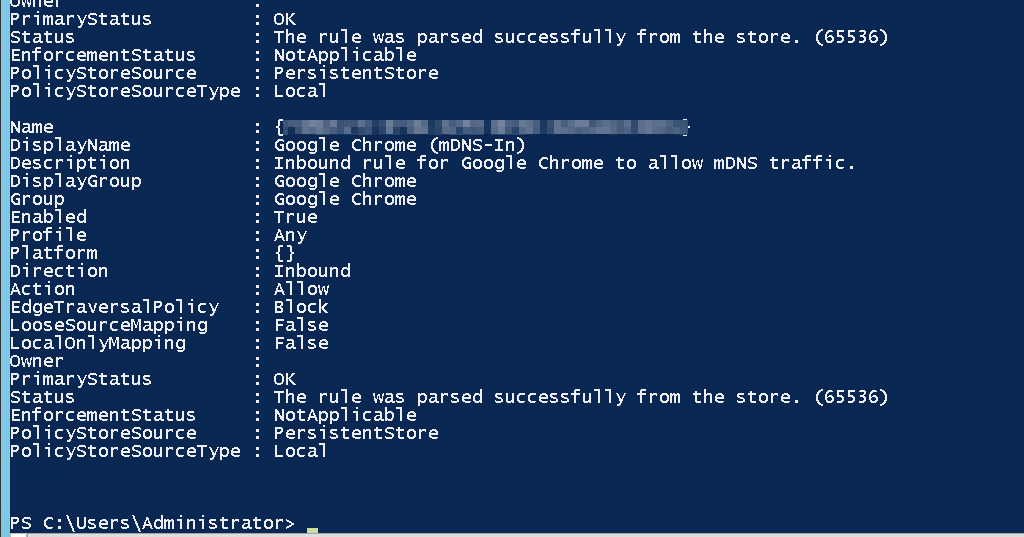
特定のルールだけ絞り込みたい場合には Where-Object を利用して絞り込む。(以下は RemoteDesktop 関連のルールを確認する場合)
PS C:\Users\Administrator> Get-NetFirewallRule | Where-Object Name -Like 'RemoteDesktop*'
以下のように出力される。
Name                  : RemoteDesktop-UserMode-In-TCP
DisplayName           : Remote Desktop - User Mode (TCP-In)
Description           : Inbound rule for the Remote Desktop service to allow RDP traffic. [TCP 3389]
DisplayGroup          : Remote Desktop
Group                 : @FirewallAPI.dll,-28752
Enabled               : True
Profile               : Any
Platform              : {}
Direction             : Inbound
Action                : Allow
EdgeTraversalPolicy   : Block
LooseSourceMapping    : False
LocalOnlyMapping      : False
Owner                 :
PrimaryStatus         : OK
Status                : The rule was parsed successfully from the store. (65536)
EnforcementStatus     : NotApplicable
PolicyStoreSource     : PersistentStore
PolicyStoreSourceType : Local

Name                  : RemoteDesktop-UserMode-In-UDP
DisplayName           : Remote Desktop - User Mode (UDP-In)
Description           : Inbound rule for the Remote Desktop service to allow RDP traffic. [UDP 3389]
DisplayGroup          : Remote Desktop
Group                 : @FirewallAPI.dll,-28752
Enabled               : True
Profile               : Any
Platform              : {}
Direction             : Inbound
Action                : Allow
EdgeTraversalPolicy   : Block
LooseSourceMapping    : False
LocalOnlyMapping      : False
Owner                 :
PrimaryStatus         : OK
Status                : The rule was parsed successfully from the store. (65536)
EnforcementStatus     : NotApplicable
PolicyStoreSource     : PersistentStore
PolicyStoreSourceType : Local
ルールの追加
例えば、特定の IP アドレスから全てのポートに対する接続を Block したい場合には以下のように実行する。
PS C:\Users\Administrator>New-NetFirewallRule `
  -Name 'xxx.xxx.xxx.xxx-block' `
  -DisplayName 'xxx.xxx.xxx.xxx-block' `
  -Description 'xxx.xxx.xxx.xxx-block' `
  -Enabled False `
  -Profile Any `
  -Direction Inbound `
  -Action Block `
  -Program Any `
  -LocalAddress Any `
  -RemoteAddress 192.168.100.100 `
  -Protocol Any `
  -LocalPort Any `
  -RemotePort Any `
  -LocalUser Any `
  -RemoteUser Any
上記の例では 192.168.100.100 からの接続を Block する。実行すると以下のように出力される。
PS C:\Users\Administrator> New-NetFirewallRule `
>>   -Name 'xxx.xxx.xxx.xxx-block' `
>>   -DisplayName 'xxx.xxx.xxx.xxx-block' `
>>   -Description 'xxx.xxx.xxx.xxx-block' `
>>   -Enabled False `
>>   -Profile Any `
>>   -Direction Inbound `
>>   -Action Block `
>>   -Program Any `
>>   -LocalAddress Any `
>>   -RemoteAddress 192.168.100.100 `
>>   -Protocol Any `
>>   -LocalPort Any `
>>   -RemotePort Any `
>>   -LocalUser Any `
>>   -RemoteUser Any
>>


Name                  : xxx.xxx.xxx.xxx-block
DisplayName           : xxx.xxx.xxx.xxx-block
Description           : xxx.xxx.xxx.xxx-block
DisplayGroup          :
Group                 :
Enabled               : False
Profile               : Any
Platform              : {}
Direction             : Inbound
Action                : Block
EdgeTraversalPolicy   : Block
LooseSourceMapping    : False
LocalOnlyMapping      : False
Owner                 :
PrimaryStatus         : OK
Status                : The rule was parsed successfully from the store. (65536)
EnforcementStatus     : NotApplicable
PolicyStoreSource     : PersistentStore
PolicyStoreSourceType : Local
今回はいきなり設定が反映されないように Enable は false の状態で設定している。
念の為に Windows Firewall の GUI でも確認してみる。
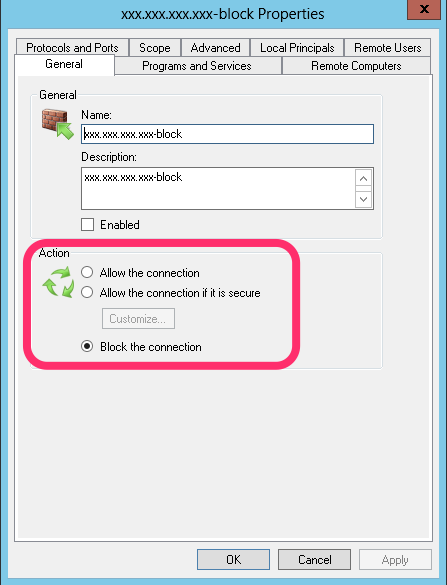
Block the connection でルールが登録されている。
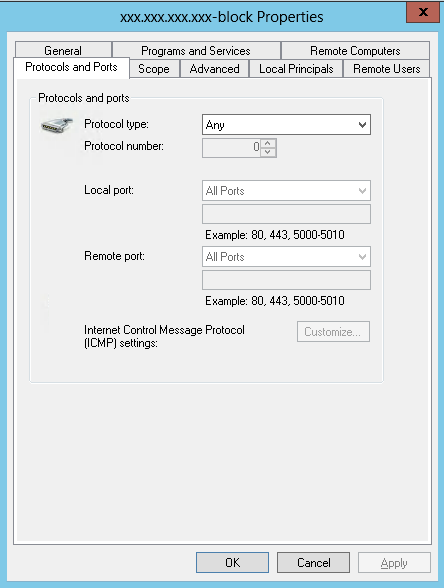
全てのプロトコルが対象となっている。
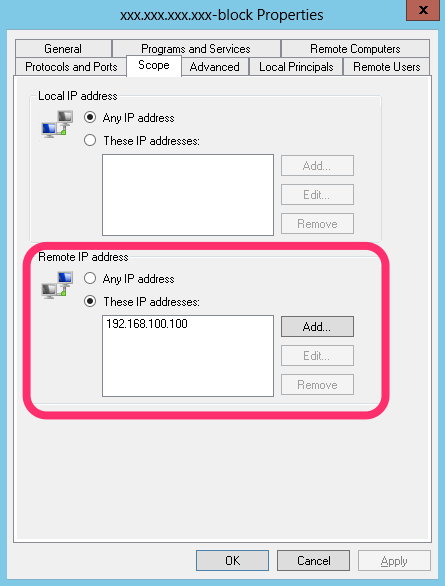
リモートの IP アドレスも登録されている。
ルールの修正
例えば リモートの IP を追加したい場合には以下のように実行する。
PS C:\Users\Administrator> Set-NetFirewallRule –DisplayName “xxx.xxx.xxx.xxx-block” -RemoteAddress 192.168.100.101,192.168.100.101
実行すると以下のように 192.168.100.101 が登録されている。
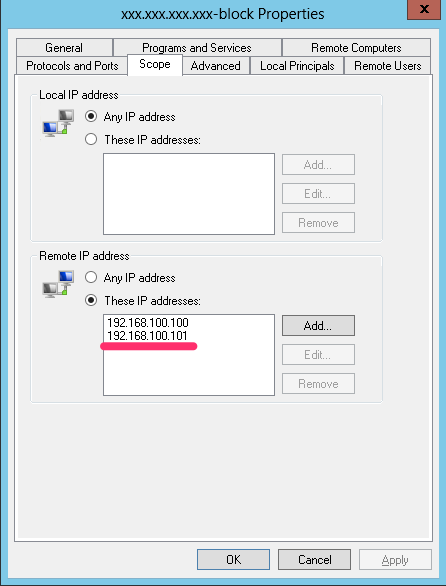
-RemoteAddress の追記ってどうするんだろうと...。上記の例だと既存の IP を確認した上で、新しい IP をカンマ区切りで書く必要があるのが辛い。
ルールを有効にする
登録の際にはルールは無効にしている為、以下のように実行してルールを有効にする。
PS C:\Users\Administrator> Set-NetFirewallRule –DisplayName “xxx.xxx.xxx.xxx-block” -Enabled True
以下のように有効になっている。

ちなみに無効にする場合には以下のように。
PS C:\Users\Administrator> Set-NetFirewallRule –DisplayName “xxx.xxx.xxx.xxx-block” -Enabled False
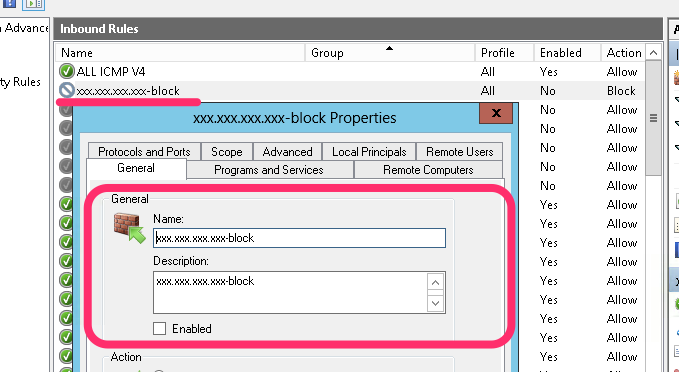
おけ。
ルールの削除
最後にルールの削除は以下のように。
PS C:\Users\Administrator> Remove-NetFirewallRule –DisplayName “xxx.xxx.xxx.xxx-block”
簡単。
ということで
PowerShell から思ったよりも簡単に Windows Firewall を操作することが出来た。不正なアクセスしてくる IP を拒否したりするような仕組みは PowerShell だけで作れるような気がしてきた。